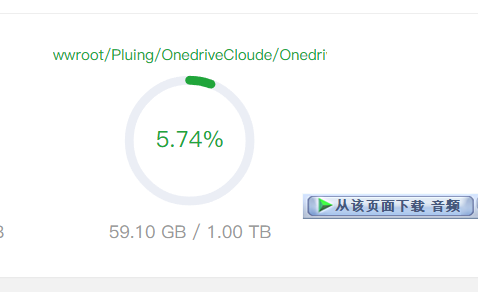

2024年9月20日12:00:27
2024年10月12日10:21:07
富哥可以打赏一下
由于我的服务器承担不起nextcloude的内存消耗,决定更改为cloudreve
[button color=“success” icon="" url=“http://cloude.maxtral.fun/” type=""]项目地址[/button] 但是手机端不能上传文件,因为平台版的cloudreve就是这样
先说reclone挂载网盘 以Onedrive为例 下载安装 使用脚本下载安装 Rclone:
curl https://rclone.org/install.sh | sudo bash
初始化配置 安装完成后输入:
rclone config
可以看到:
n) New remote
s) Set configuration password q) Quit config
输入 n 新建配置。
name 可以随便输入,
然后会出现挂载的服务类型,如下:
Type of storage to configure.
Enter a string value. Press Enter for the default (""). Choose a number from below, or type in your own value
[scode type=“lblue”] 1 / 1Fichier \ “fichier” 2 / Alias for an existing remote \ “alias” 3 / Amazon Drive \ “amazon cloud drive” 4 / Amazon S3 Compliant Storage Providers including AWS, Alibaba, Ceph, Digital Ocean, Dreamhost, IBM COS, Minio, and Tencent COS \ “s3” 5 / Backblaze B2 \ “b2” 6 / Box \ “box” 7 / Cache a remote \ “cache” 8 / Citrix Sharefile \ “sharefile” 9 / Compress a remote \ “compress” 10 / Dropbox \ “dropbox” 11 / Encrypt/Decrypt a remote \ “crypt” 12 / Enterprise File Fabric \ “filefabric” 13 / FTP Connection \ “ftp” 14 / Google Cloud Storage (this is not Google Drive) \ “google cloud storage” 15 / Google Drive \ “drive” 16 / Google Photos \ “google photos” 17 / Hadoop distributed file system \ “hdfs” 18 / Hubic \ “hubic” 19 / In memory object storage system. \ “memory” 20 / Jottacloud \ “jottacloud” 21 / Koofr \ “koofr” 22 / Local Disk \ “local” 23 / Mail.ru Cloud \ “mailru” 24 / Mega \ “mega” 25 / Microsoft Azure Blob Storage \ “azureblob” 26 / Microsoft OneDrive \ “onedrive” 27 / OpenDrive \ “opendrive” 28 / OpenStack Swift (Rackspace Cloud Files, Memset Memstore, OVH) \ “swift” 29 / Pcloud \ “pcloud” 30 / Put.io \ “putio” 31 / QingCloud Object Storage \ “qingstor” 32 / SSH/SFTP Connection \ “sftp” 33 / Sugarsync \ “sugarsync” 34 / Tardigrade Decentralized Cloud Storage \ “tardigrade” 35 / Transparently chunk/split large files \ “chunker” 36 / Union merges the contents of several upstream fs \ “union” 37 / Webdav \ “webdav” 38 / Yandex Disk \ “yandex” 39 / Zoho \ “zoho” 40 / http Connection \ “http” 41 / premiumize.me \ “premiumizeme” 42 / seafile \ “seafile”
直接输入序号,比如我挂载的是 OneDrive 就可以输入 26 ,
client_id 可以直接回车默认,
client_secret 也可以直接回车默认,
然后会出现 OneDrive 区域选择,如下:
Choose national cloud region for OneDrive. Enter a string value. Press Enter for the default (“global”). Choose a number from below, or type in your own value 1 / Microsoft Cloud Global \ “global” 2 / Microsoft Cloud for US Government \ “us” 3 / Microsoft Cloud Germany \ “de” 4 / Azure and Office 365 operated by 21Vianet in China \ “cn” 可以直接输入 1 选择全球,
然后是选择是否进行高级配置,如下:
dit advanced config? (y/n) y) Yes n) No (default) 可以输入 n ,
接着是自动配置选择,如下:
Remote config Use auto config?
- Say Y if not sure
- Say N if you are working on a remote or headless machine y) Yes (default) n) No 可以输入 n , [/scode]
这里需要获取授权码:
For this to work, you will need rclone available on a machine that has
a web browser available.
For more help and alternate methods see: https://rclone.org/remote_setup/
Execute the following on the machine with the web browser (same rclone version recommended):
rclone authorize "onedrive"
Then paste the result below: 授权码需要在本地电脑上获取,访问 https://rclone.org/downloads/ 根据你的电脑系统版本下载对应的 Rclone。
下载完成后解压,进入存放 Rclone 的目录,以 Win10 为例,打开 Powershell ,输入:
./rclone authorize "onedrive"
浏览器应该会自动打开,如果浏览器没有打开可以根据提示复制地址访问。如果浏览器登录了 OneDrive 的话会直接显示授权确认信息,如果没有登录的话会弹出登录页面,登录 OneDrive 后也会显示授权确认信息,如下:
OneDrive授权确认信息
选择 接受 后在本地命令行会显示一串 JSON 格式的授权信息,复制授权信息包括首尾的 {} ,到 Linux 终端粘贴。
然后是选择 OneDrive 的类型,如下: [scode type=“green”]*Choose a number from below, or type in an existing value 1 / OneDrive Personal or Business \ “onedrive” 2 / Root Sharepoint site \ “sharepoint” 3 / Sharepoint site name or URL (e.g. mysite or https://contoso.sharepoint.com/sites/mysite) \ “url” 4 / Search for a Sharepoint site \ “search” 5 / Type in driveID (advanced) \ “driveid” 6 / Type in SiteID (advanced) \ “siteid” 7 / Sharepoint server-relative path (advanced, e.g. /teams/hr) \ “path” 可以输入 1 ,
然后会显示找到的 OneDrive 账户,如下:
Found 1 drives, please select the one you want to use: 0: OneDrive (business) id=b!b_xnJJqyBMSVPjgvhvbP8XmJ_M_dMjhzrbhnaWknnbKqNBm8MTqM3kvEtW67P 根据提示输入序号,
这里会根据你输入的序号查找账户,如下:
Found drive ‘root’ of type ‘business’, URL: https://xxx-my.sharepoint.com/personal/changbin_xxx_onmicrosoft_com/Documents Is that okay? y) Yes (default) n) No 确认无误后输入 y ,
接着会显示你选择的配置信息,确认无误后输入 y 保存配置。
挂载 输入:
rclone mount configName:OneDriveLocation dir –copy-links –no-gzip-encoding –no-check-certificate –allow-other –allow-non-empty –umask 000 其中的 configName 就是配置名称,OneDriveLocation 就是要挂载的 OneDrive 目录,dir 就是要挂载到的本地目录。
例如我要把一个名为 OneDrive 的配置挂载到本地的 /OneDrive 目录,我可以这样写:
rclone mount OneDrive:/ /OneDrive –copy-links –no-gzip-encoding –no-check-certificate –allow-other –allow-non-empty –umask 000 我这里挂载的是整个 OneDrive 网盘,所以我写的是 OneDrive 的根目录 / 。 *[/scode]
挂载完成后不会显示任何内容,可以再开一个终端,输入 df -h 查看磁盘空间,如下:
Filesystem Size Used Avail Use% Mounted on devtmpfs 1.5G 0 1.5G 0% /dev tmpfs 1.5G 0 1.5G 0% /dev/shm tmpfs 1.5G 153M 1.4G 11% /run tmpfs 1.5G 0 1.5G 0% /sys/fs/cgroup /dev/vda1 57G 26G 29G 48% / tmpfs 301M 0 301M 0% /run/user/0 OneDrive 5.0T 1.1T 4.0T 21% /OneDrive 挂载完成后进入挂载的目录就可以看到 OneDrive 的文件了,上传文件可以直接拷贝到挂载目录,下载也是直接拷贝到本地目录。
挂载出错 如果在挂载的时候出现了类似下面的提示:
2021/03/04 18:58:16 Fatal error: failed to mount FUSE fs: fusermount: exec: “fusermount”: executable file not found in $PATH 需要安装 fuse。
CentOS/Fedora 安装 fuse:
yum install -y fuse Ubuntu/Debian 安装 fuse:
apt install -y fuse 然后就是开机自动挂载了
sudo nano /etc/rc.local
在这里面写刚才的挂载指令 大功告成!